Free Business Email Forever (No Trial, No Credit Card) — Real Setup That Works

Anjani Thakor
Marketing Manager

Get Your Website Audit
Share your details and we’ll analyze your site for key improvements within 24 hours.
"I just need a professional email. Just one. Something like hello@mybusiness.com. How hard can this be?"
— Every startup founder, freelancer, and side-project owner, right before spending 45 minutes reading blogs that all end the same way: start your free trial today.
You've been there. You open a new tab, type "free business email," and click the first result. Looks promising. You read through the whole thing — step by step, screenshots and all. And then, buried at the bottom, the truth comes out:
"Free for 14 days. Then just $6/month per user."
Close tab. Try the next one. Same story. Different brand, same paywall.
If you're looking for a free business email without paying, this guide is the real answer — not a trial, not a limited-tier upsell, not a "free plan" with five restrictions. A working setup that costs nothing and runs forever.
Most guides push paid tools. This is one of the few methods that shows how to set up a free business email without paying — and actually keep it free.
Why "free business email" is almost always a lie
Let's be honest about what's out there, because you deserve to know before you waste another hour.
Google Workspace is the gold standard — also $6–$18/month per user. Their "free trial" lasts 14 days and then it's done. Zoho Mail has a free plan, but it blocks POP/IMAP access on the free tier, which means you can't pull emails into Gmail the way you actually want to. Most web hosting "free email" is tied to hosting plans that cost money — the email is technically "free" only if you're already paying for the hosting.
None of these are bad tools. They're just wrong for someone who genuinely needs a zero-cost setup and already has a domain and a Gmail account.
Here's what most blogs won't say out loud: if you're a solo founder, a freelancer, or running a small side project, you do not need full email hosting. You just need your emails to look professional and land in your inbox. That's it. And that's exactly what this method gives you.
This is not a replacement for full business email platforms like Google Workspace — for large teams, those tools make sense. But for simple use cases, what you're about to set up works perfectly.
What you actually need (you probably have most of it)
Your domain | Gmail account | Cloudflare account | Time needed |
|---|---|---|---|
mybusiness.com | Personal or new | 100% free | ~15 minutes |
That's the whole list. No new software. No paid add-ons. No surprises.
Quick summary — how this works
Use Cloudflare Email Routing to catch emails sent to your domain
Forward those emails directly to your Gmail inbox
Configure Gmail "Send As" to send from your domain address
Works with any custom domain you already own
No monthly cost — completely free, forever
Step-by-step setup — free business email with Cloudflare and Gmail
This is the method to get a free business email without paying anything beyond your domain registration. Follow each step in order.
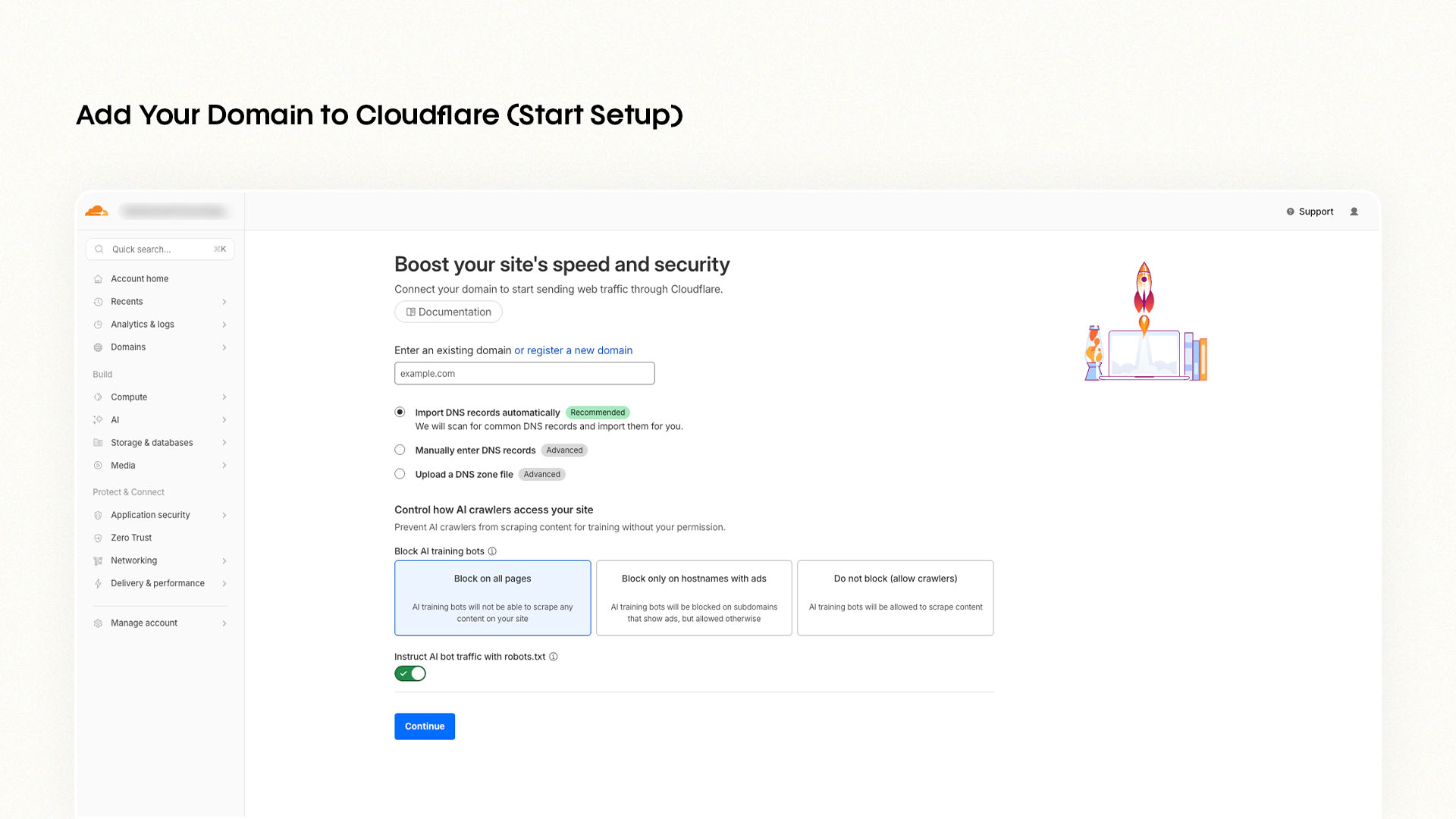
Add your domain to Cloudflare
Go to cloudflare.com and create a free account. Click "Add a site" and enter your domain. Choose the free plan — Cloudflare will scan your existing DNS records automatically. This usually takes about 60 seconds.
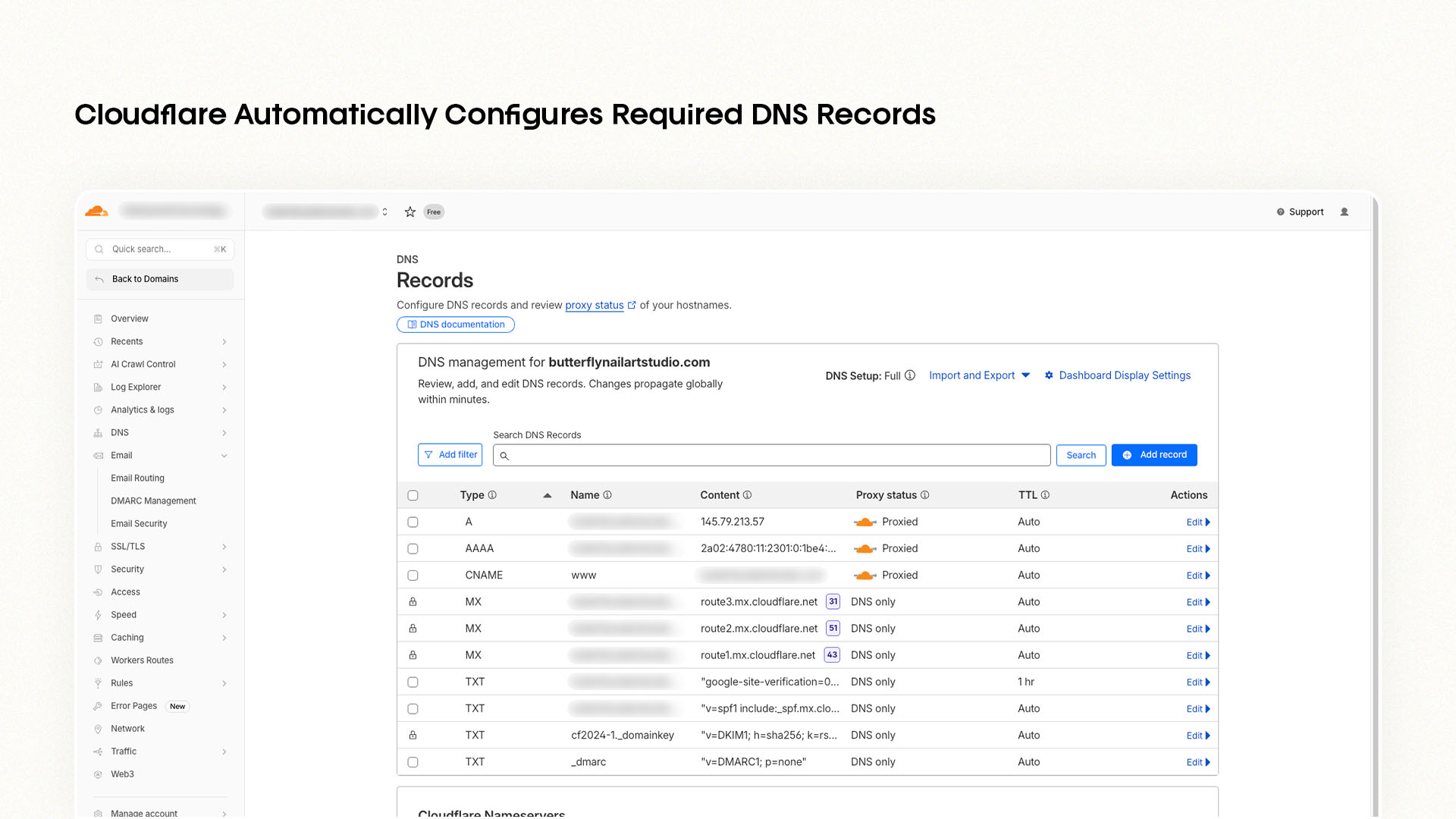
Update your nameservers
Cloudflare gives you two nameservers (they look like ada.ns.cloudflare.com). Log in to wherever you bought your domain — GoDaddy, Namecheap, Google Domains — and replace the current nameservers with Cloudflare's two. Propagation usually completes within minutes, sometimes a few hours.
Set up Email Routing in Cloudflare
Inside your Cloudflare dashboard, go to Email → Email Routing. Enable it. Create a routing rule: set the custom address (like hello@yourdomain.com) and forward it to your personal Gmail. Cloudflare adds all required DNS records automatically.
Test it right now — send an email to your new address from any other account. It should land in your Gmail within seconds.
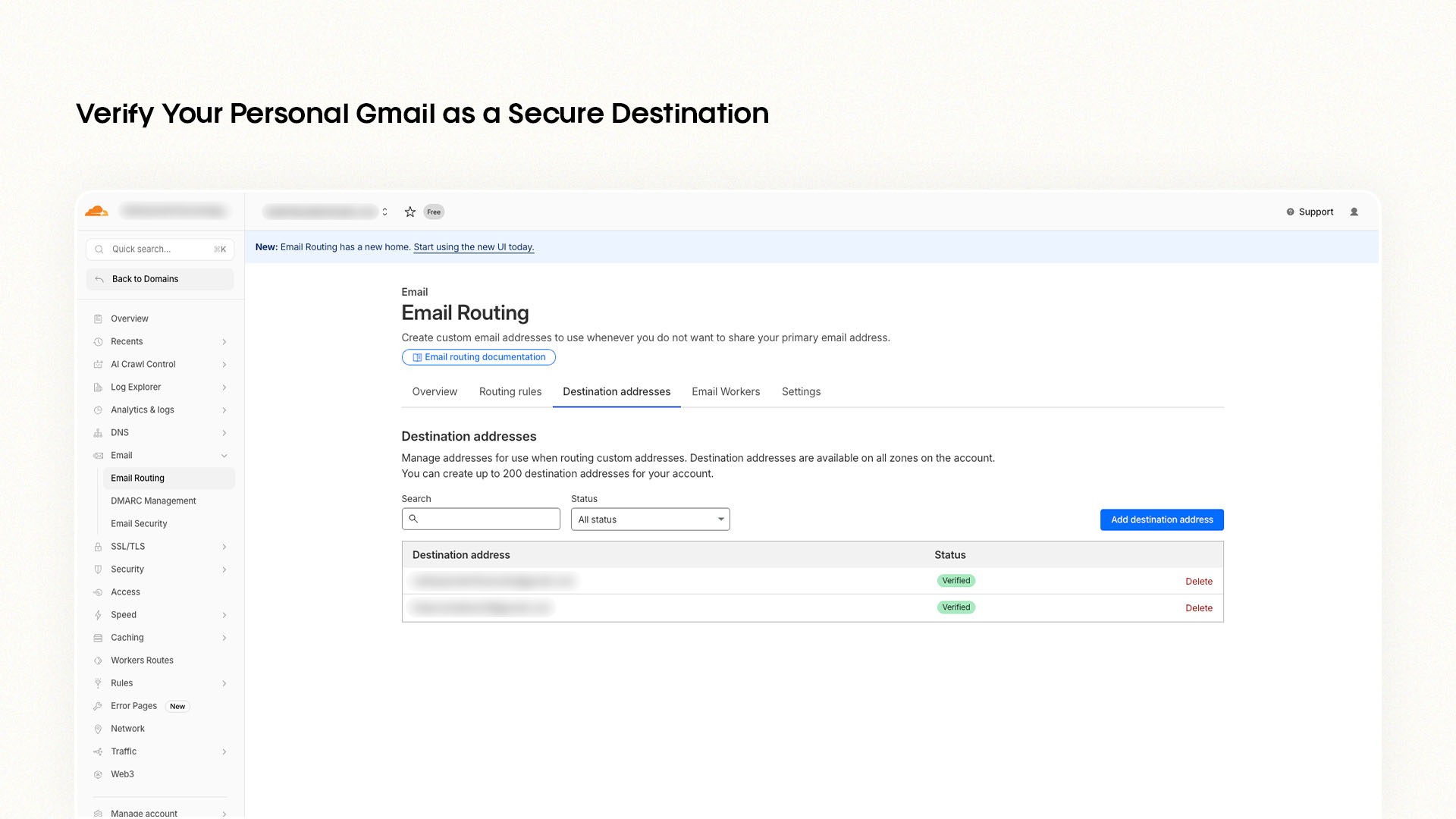
This is where you authorize Cloudflare to forward your professional mail to your private Gmail account.
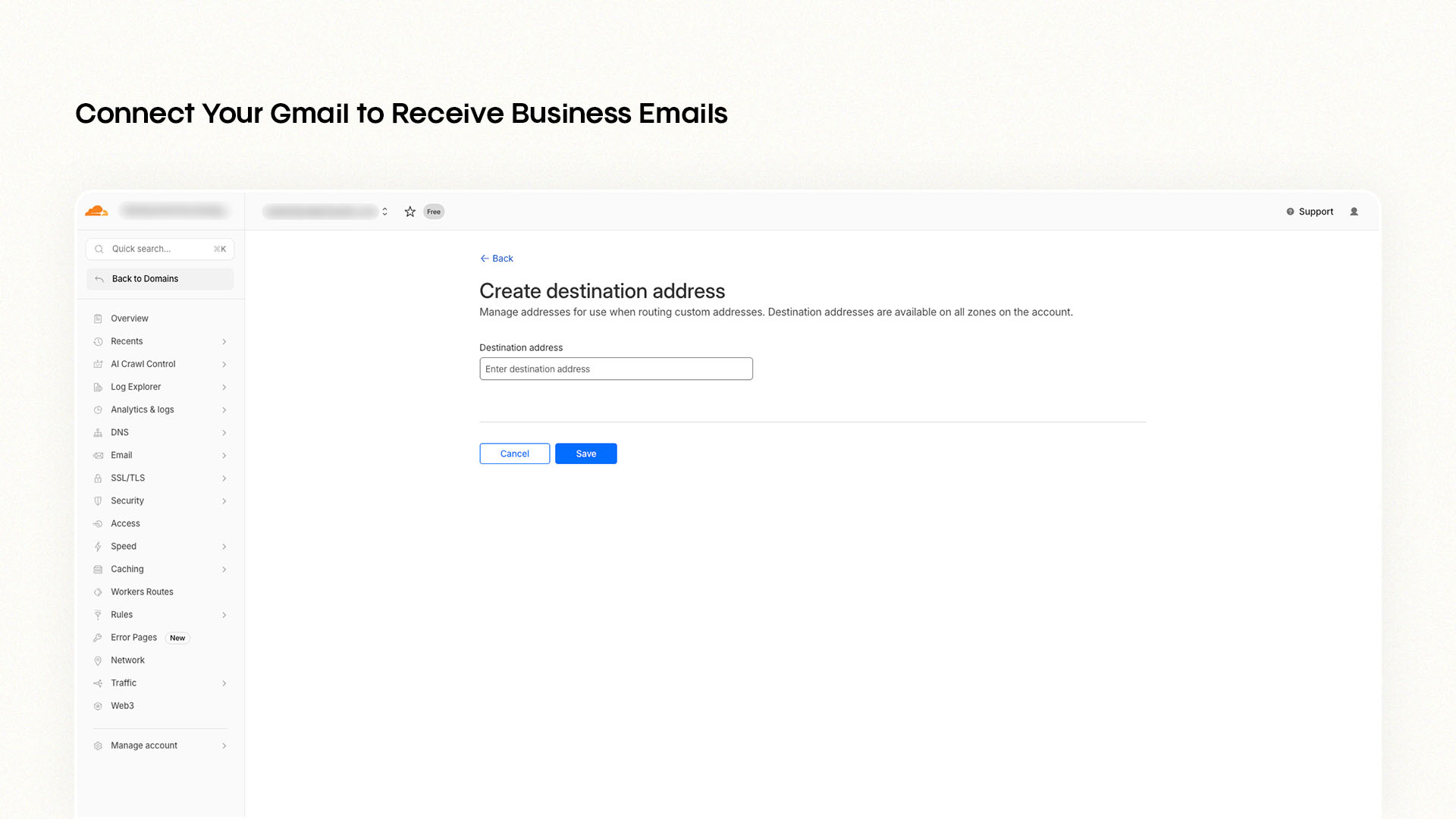
This step links your professional business address directly to your personal Gmail inbox.
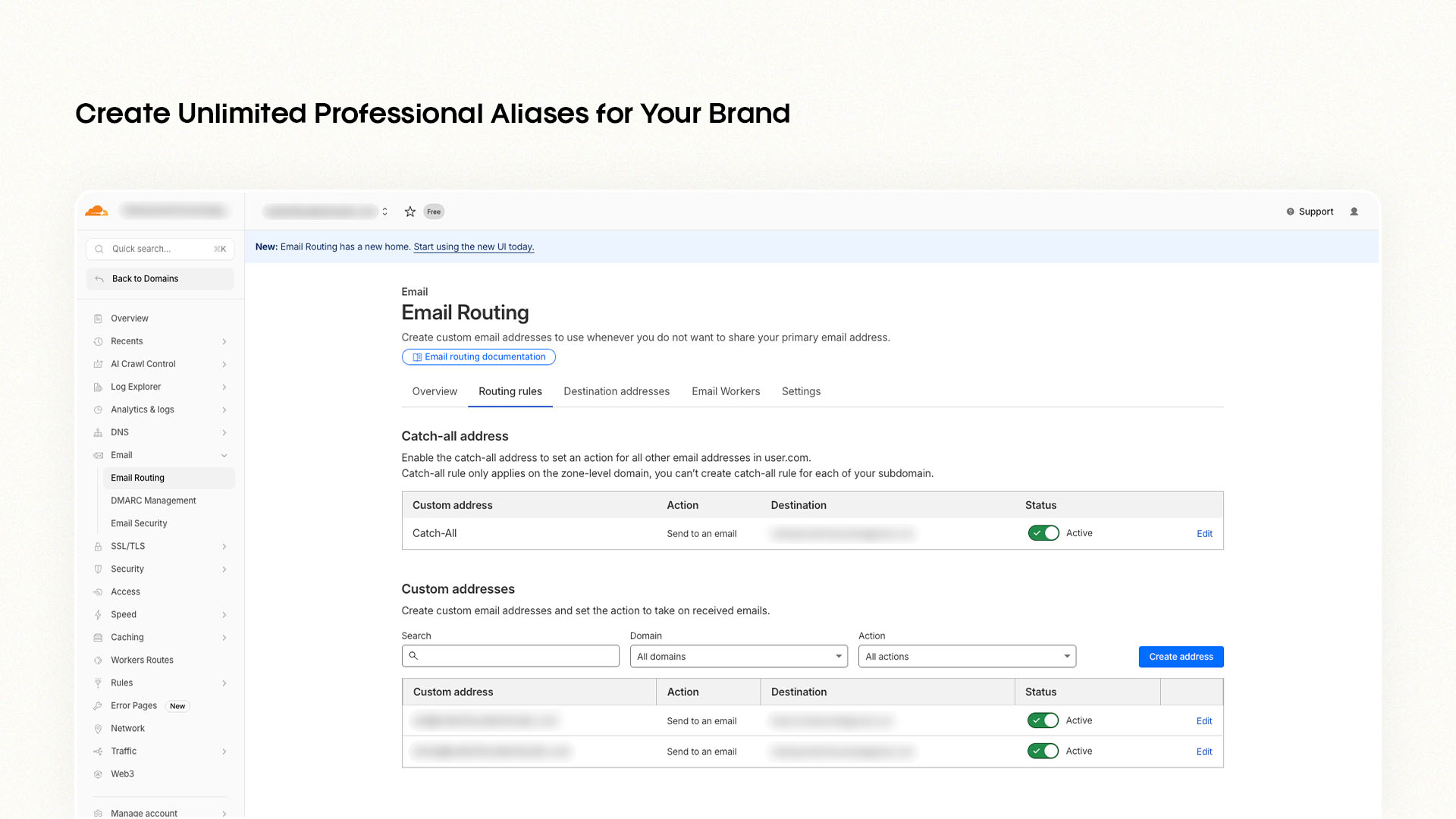
Use this section to create your professional aliases like hello@yourdomain.com for your brand.
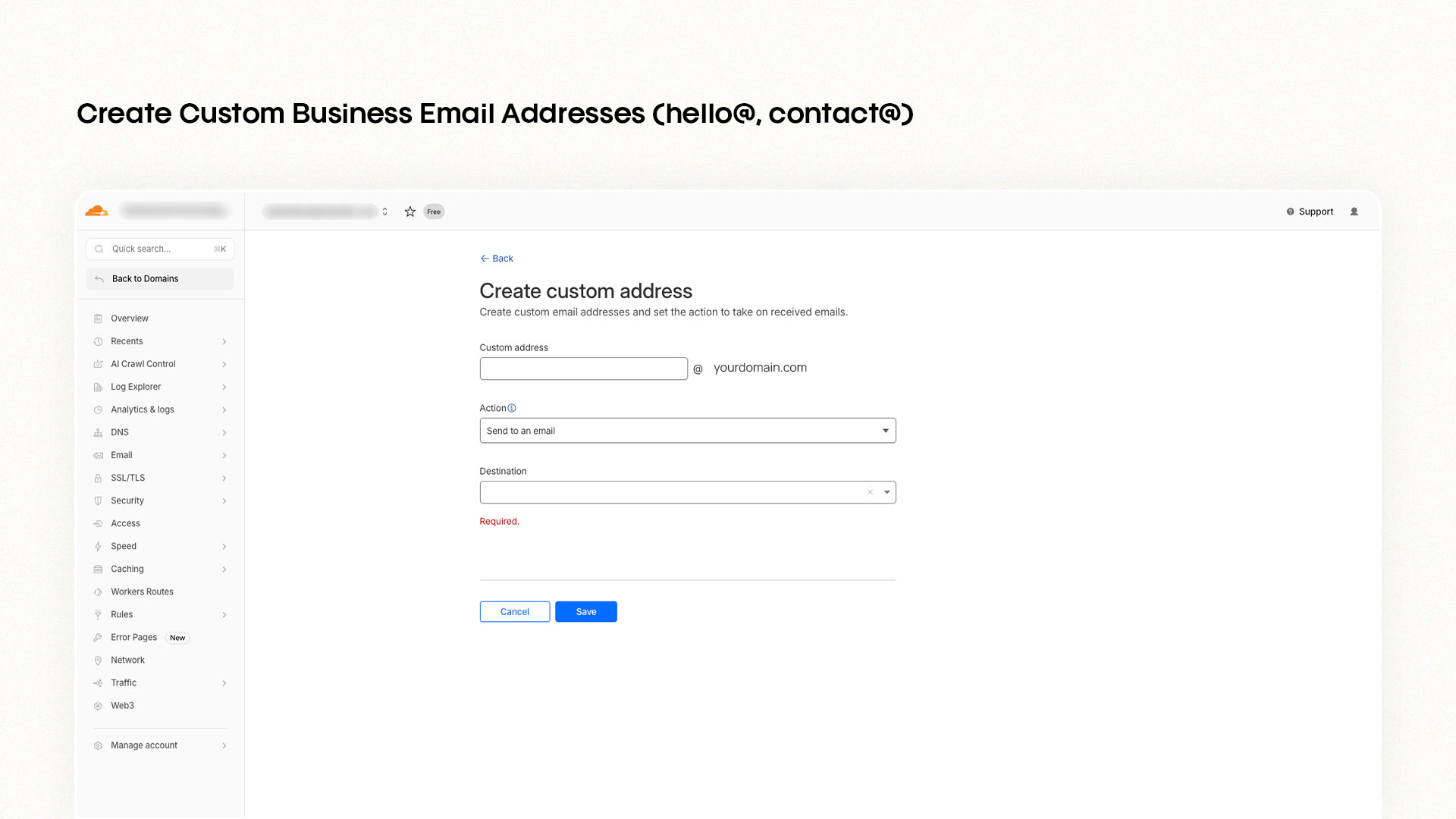
The final step where you name your new business email and point it to your verified destination.
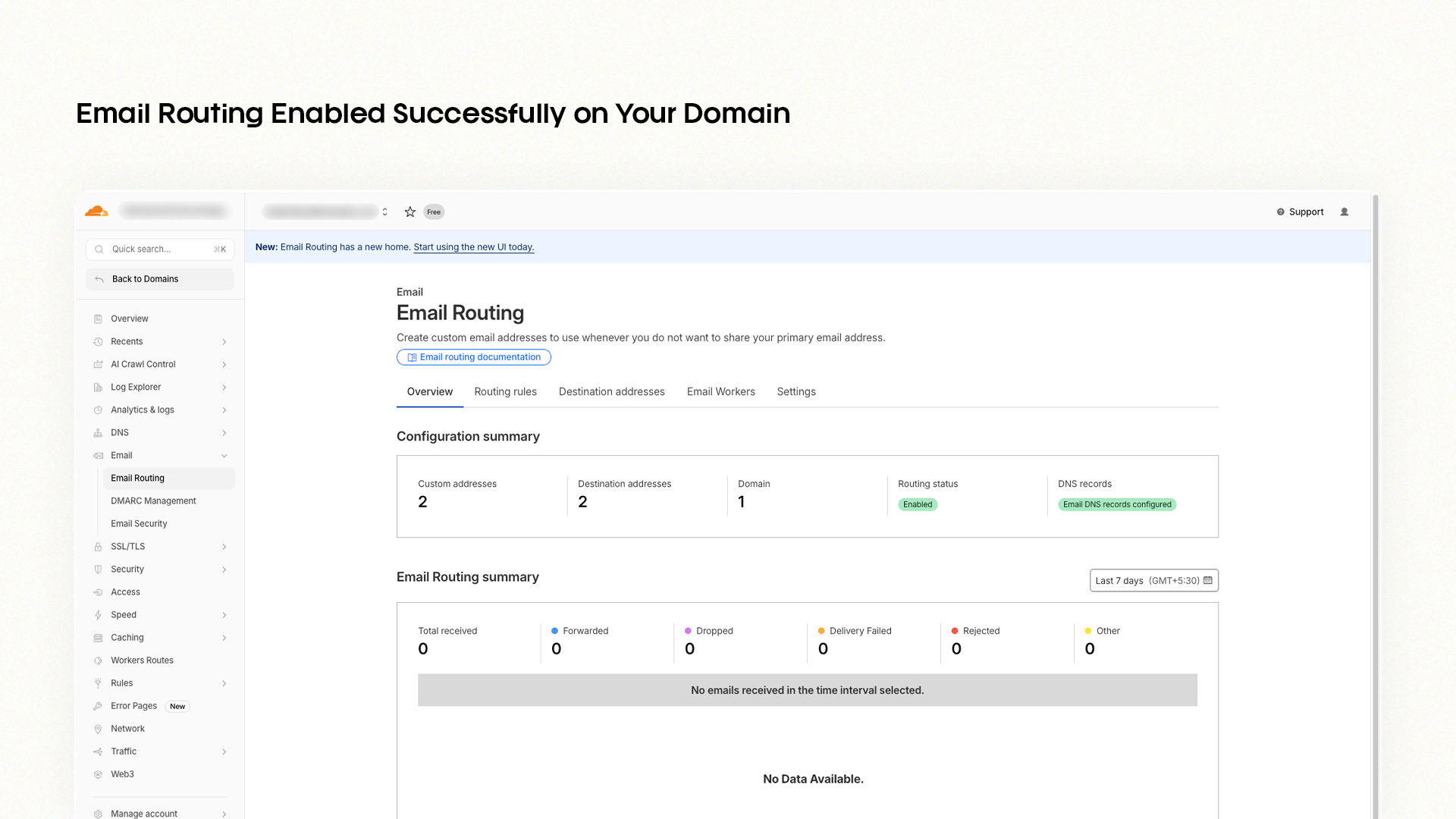
The main dashboard confirming that your domain is now ready to handle incoming professional emails.
Set up a Gmail account to use as your sender
You can use your existing Gmail, but creating a dedicated Gmail account for your business keeps things cleaner. When you create it, set the display name to your business name — this is what recipients will see when you email them. Something like yourname.business@gmail.com works well as the underlying account.
Configure "Send As" in Gmail
This is the step that lets Gmail send emails from your domain address. Here's exactly how:
In Gmail, go to Settings → See all settings → Accounts and Import
Under "Send mail as," click Add another email address
Enter your name and your domain email (
hello@yourdomain.com)Use SMTP server:
smtp.gmail.com, port 587, with your Gmail loginFor the password, you need a Gmail App Password — go to Google Account → Security → 2-Step Verification → App Passwords, then generate one for "Mail"
Paste that App Password into the SMTP setup in Gmail
Gmail sends a confirmation email to your domain address — click confirm
Once confirmed, every time you compose in Gmail, you'll see your domain email as a selectable "From" address.
Done. You now receive emails at hello@yourdomain.com and send from it — all inside Gmail — completely free.
How it actually works
Someone sends an email to hello@yourdomain.com. Cloudflare catches it and forwards it to your Gmail. It shows up in your inbox like any normal email. When you reply — or write a new email — you select your domain address as the "From" field. The person on the other end sees your professional address, not your Gmail.
It looks exactly like a paid business email to everyone receiving it. Because functionally, it is — you just didn't pay for it.
Limitations to know before you start
This guide isn't trying to sell you anything, so here's the straight truth:
This is not full email hosting — there's no dedicated inbox on a server. Everything runs through Gmail.
If Gmail is ever down or your account is locked, your business email is affected too.
Works best for one to three email addresses. Managing a larger team with this gets messy fast — at that point, a paid platform makes more sense.
Some advanced features like shared inboxes or email analytics aren't available here.
For most people reading this — solo founders, freelancers, early-stage startups, side projects — none of that matters. This does exactly what you need.
Who this is actually for
Freelancers
Solo founders
Side projects
Early startups
Small agencies
Portfolio sites
If you're in any of these categories and you just need a professional email address that works reliably without a monthly bill, this is your solution.
Final thoughts
If all you need is a free business email without paying, this method gives you exactly that — no trials, no hidden costs, no unnecessary tools. A domain you already own, a Cloudflare account that's free, and the Gmail you already use every day. That's the whole stack.
The reason this works where other "free" options fail is simple: it's not a limited version of a paid product. It's two genuinely free tools used together in the way they were built to work. No expiration date on that.
You've spent enough time on blogs that end in a paywall
This setup takes about 15 minutes. You'll walk away with a real, professional business email address that costs nothing month after month.
FAQs
How can I create a free business email without paying?
Use Cloudflare's free Email Routing to forward emails from your domain to Gmail, then set up Gmail's "Send As" feature to send from that same domain address. The only cost involved is your domain registration — everything else is completely free.
Is there a way to get business email free forever — not just a trial?
Yes. Cloudflare Email Routing has been free since it launched in 2021 with no indication of changing. Gmail's SMTP Send As feature has been free for over a decade. This method uses two long-standing free tools together — it's not a loophole, it's just using them the way they were designed.
Can I use Gmail with my own domain for free?
Yes — that's exactly what this guide sets up. You use Gmail as your interface and inbox, but your email address shows your domain (like hello@yourbusiness.com) both when you receive and send emails.
Do I need to buy a domain for this?
Yes. A domain is the one requirement that has a cost. A .com domain typically runs $10–12/year from registrars like Namecheap or Porkbun. Everything else in this guide is free.
Can I create multiple email addresses with this method?
Yes. You can add multiple routing rules in Cloudflare — hello@, contact@, support@ — and forward each one to different Gmail accounts. Works well for small setups with a few addresses.


Ready to Stop Managing Vendors and Start Working With a Real Partner?
Let's have an honest, strategic conversation about your business challenges, growth goals, and whether we're the right team to help you achieve them.
Business Review
Market Analysis
Strategic Recommendations